


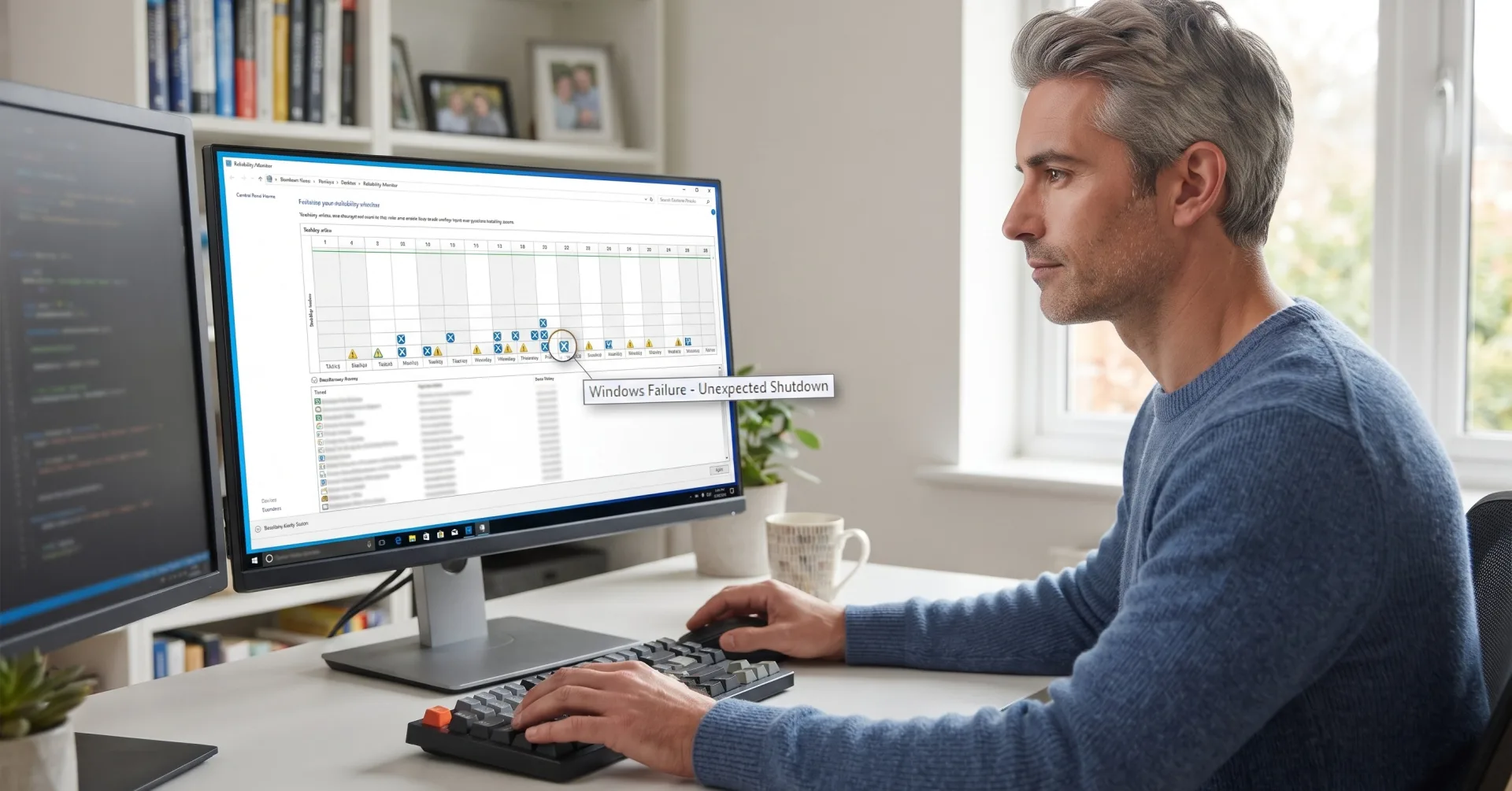
Is your computer suddenly running slowly, freezing frequently or shutting down applications unexpectedly? Before taking it to a repair centre, you can use a built-in Windows tool to get an initial idea of what might be going wrong.
The tool is called Reliability Monitor. It records important system events, including software crashes, Windows errors and certain system changes. By reviewing its reports, users can identify when a problem first appeared and whether it started after installing a particular application or update.
What Is Windows Reliability Monitor?
Windows Reliability Monitor is a built-in diagnostic feature that provides a history of your computer's stability and important system events.
It displays information through a simple graph, making it easier to identify days when errors, warnings or software installations occurred.
For example, if an application repeatedly crashes or Windows shuts down unexpectedly, Reliability Monitor may show details about those incidents. Comparing the dates of different events can also help users identify possible connections between software updates and system problems.
How to Open Reliability Monitor in Windows
Opening Reliability Monitor takes only a few seconds. Follow these steps:
Press Windows + R on your keyboard.
Type
perfmon /relin the Run box.Press Enter.
Wait a few moments for the Reliability Monitor window to appear.
Alternatively, type View reliability history into the Windows search box and select the matching result.
What Information Does the Report Show?
Reliability Monitor presents a stability graph that provides an overview of your computer's performance history. Events are organised by date and grouped into different categories.
Critical Events: These include serious incidents such as application crashes, Windows errors and unexpected system shutdowns.
Warnings: These indicate certain software or system events that may require attention.
Information: This section records events such as software installations, updates and other important system changes.
Users can select a particular date or event to view additional details. Depending on the incident, the report may show the application name, event time and an error code.
This information can help narrow down the possible source of a computer problem.
Other Windows Tools That Can Help Diagnose PC Problems
Reliability Monitor helps users understand when errors occurred and what type of problems were recorded. However, other Windows tools can provide additional information about slow performance and system issues.
1. Task Manager
Task Manager shows which applications and processes are consuming system resources. It can help identify programs using excessive CPU, RAM or disk resources.
Press Ctrl + Shift + Esc to open it.
2. Event Viewer
Event Viewer provides more detailed logs of Windows and application events. Users can search for system errors and examine additional technical information.
Type Event Viewer into the Windows search box to open it.
3. Windows Memory Diagnostic
This tool checks the computer's memory for potential RAM-related problems.
Type mdsched into the Windows search box and follow the instructions to start the diagnostic process. The computer may need to restart to complete the test.
4. Get Help Troubleshooter
Windows also provides troubleshooting support through the Get Help app. Its troubleshooters can help users investigate common issues involving internet connectivity, audio, Windows Update and other system features.
Can Reliability Monitor Fix All Computer Problems?
No. Reliability Monitor is primarily a diagnostic tool. It helps users identify and understand system errors, but it does not automatically repair every problem.
If its report shows repeated crashes involving a particular application, users may need to update or reinstall that software. Other problems may require checking Windows updates, system settings or hardware components.
For more complicated issues, professional technical support may be necessary.
When a computer starts freezing, slowing down or experiencing repeated software crashes, identifying the source of the problem is an important first step.
Windows Reliability Monitor offers a convenient way to review system errors and important changes without installing additional software. Although it cannot fix every issue, its reports can help users understand what happened and decide what to do next.






Comments
No comments yet. Be the first to write one.
Leave a comment